
You can add student PCs to each class setting on the InterCLASS teacher program from a comma delimited CSV file.
- Create a comma delimited CSV file that lists the student computers in the classroom.
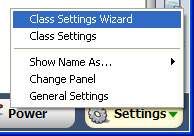
*Please use Notepad to create a CSV file. DO NOT use MS Excel. Here is a sample of the CSV file. - Start the InterCLASS Teacher program, and then click “Settings” > “Class Settings Wizard.”
- Select “Add New Class”, type in a new class name, and then click Next.

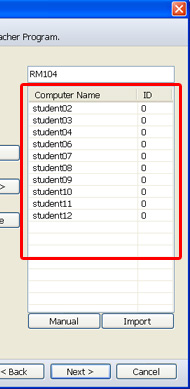
- Click the “Import” button and then open the CSV file. The student computer names will then be added to the class.
.
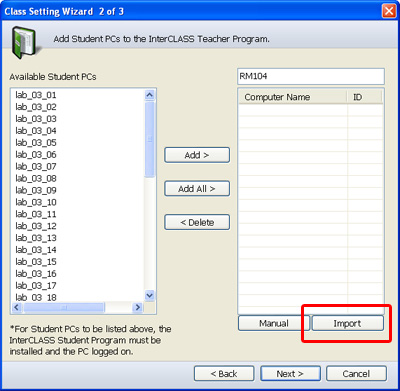 > >
> > 
- Click Next and then click Finish.
-
Create a classroom layout and then click Exit.

- To make multiple class settings with a different set of student computers, please repeat Steps 1-6.


